Close Menu
  • Home
  • Latest News
  • Tech News
  • Blog
  • Contact

Subscribe to Updates

Get the latest creative news from FooBar about art, design and business.

What's Hot

Apple September 9, 2025 Event: iPhone 17, Apple Watch Ultra 3, AirPods Pro 3 & More

August 28, 2025

India says goodbye to GPS, to have its own desi navigation system, IRNSS

August 22, 2025

Ad Blockers Could be Banned in Germany

August 22, 2025
Facebook X (Twitter) Instagram
Today Bridge
  • Home
  • Latest News
  • Tech News
  • Blog
  • Contact
Facebook X (Twitter) Instagram
Today Bridge
Home » How to Fix Clock Watchdog Timeout Error on Windows 11/10
Latest News

How to Fix Clock Watchdog Timeout Error on Windows 11/10

Todays BridgeBy Todays BridgeJanuary 9, 2025Updated:January 9, 2025No Comments3 Mins Read
Share Facebook Twitter Pinterest LinkedIn Tumblr Reddit Telegram Email
How to Fix Clock Watchdog Timeout Error on Windows 11/10
Share
Facebook Twitter LinkedIn Pinterest Email

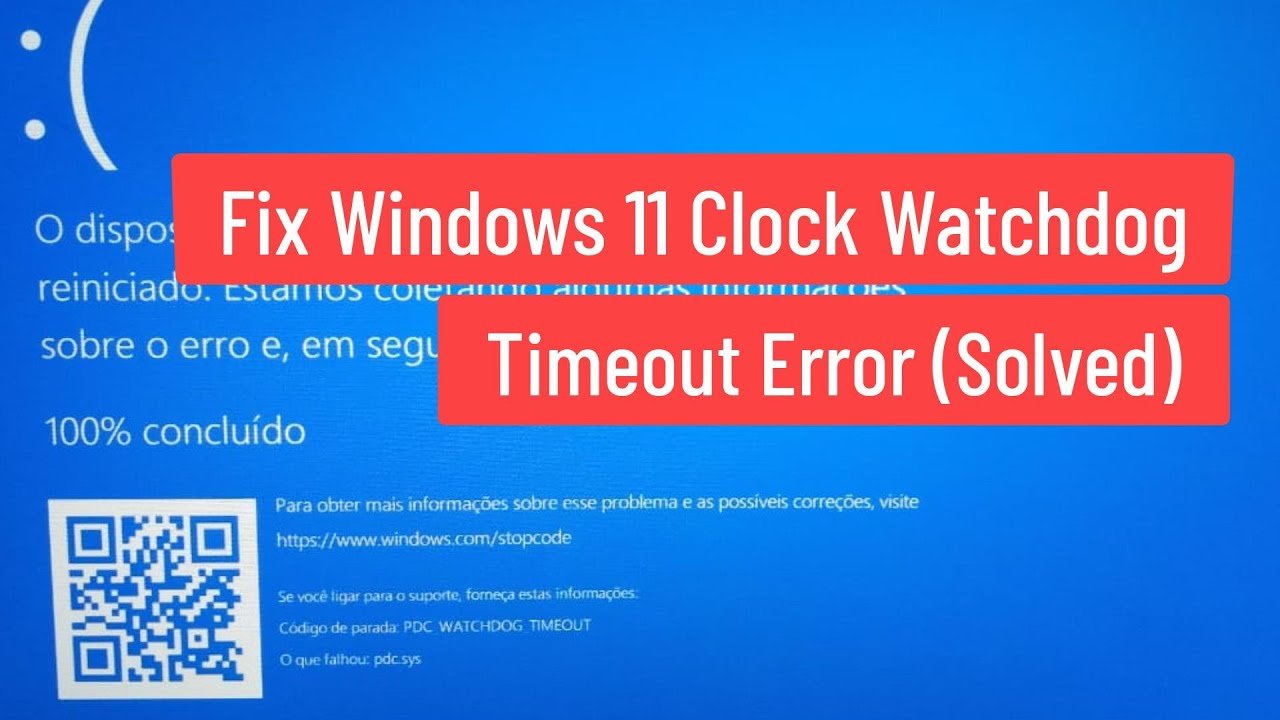
Blue Screen of Death (BSOD) errors are common in Windows, often caused by hardware or software issues. The CLOCK_WATCHDOG_TIMEOUT error, particularly prevalent in Windows 10 and 11, stems from communication problems between the system and the CPU, often triggered by demanding tasks such as gaming or copying large files.

Here’s a step-by-step guide to resolve this error and restore system stability.

Table of Contents

Toggle
  • What Causes the Clock Watchdog Timeout Error?
  • 8 Ways to Fix the Clock Watchdog Timeout Error
    • 1. Check Hardware Connections
    • 2. Update Drivers
    • 3. Test RAM Using Windows Memory Diagnostic
    • 4. Disable Overclocking
    • 5. Reset BIOS Settings
    • 6. Run SFC and DISM Scans
    • 7. Use Safe Mode to Identify Problems
    • 8. Reinstall Windows
  • Preventing Future BSOD Errors

What Causes the Clock Watchdog Timeout Error?

  • Overclocking of RAM, CPU, or system components.
  • Outdated or corrupt system drivers.
  • Loose or poorly connected components or cables.
  • Faulty hardware components.

8 Ways to Fix the Clock Watchdog Timeout Error

1. Check Hardware Connections

Loose or poorly connected components can cause BSOD errors.

  • Open your PC case and check the connections of the RAM, GPU, and CPU.
  • Remove the RAM and GPU, clean the connectors, and reseat them properly.

2. Update Drivers

Outdated or corrupt drivers can lead to errors when accessing hardware.

  • Steps to update drivers:
    1. Right-click the Start button and select Device Manager.
    2. Look for devices with a yellow warning sign, right-click, and select Update Driver.
    3. Choose Search automatically for drivers.

If no updates are found, download drivers from the manufacturer’s website.

3. Test RAM Using Windows Memory Diagnostic

Faulty RAM can cause BSOD errors. Use the built-in Windows Memory Diagnostic tool:

  1. Press Win + S, type mdsched, and press Enter.
  2. Select Restart now and check for problems.
  3. Wait for the system to reboot and analyze the RAM.

If errors are detected, reseat or replace the RAM.

4. Disable Overclocking

Overclocking can overheat the system and trigger the error.

  • Access the BIOS or any third-party overclocking app to disable overclocking.
  • Check system temperatures using tools like Core Temp or HWiNFO.

5. Reset BIOS Settings

Resetting BIOS can resolve misconfigured system settings:

  1. Restart the PC and press the designated key (F2, F10, or Del) to open the BIOS.
  2. Navigate to the Exit tab.
  3. Select Load Default Settings, confirm changes, and reboot.

6. Run SFC and DISM Scans

Fix corrupt system files with SFC and DISM tools:

  1. Open Command Prompt as an administrator (Win + S, type cmd, and press Ctrl + Shift + Enter).
  2. Run the command: sfc /scannow.
  3. Then, run: DISM /Online /Cleanup-Image /RestoreHealth.
  4. Restart the PC after the scans complete.

7. Use Safe Mode to Identify Problems

Safe Mode helps isolate problematic applications or updates.

  • Access Safe Mode through Windows Recovery Environment:
    1. Navigate to Troubleshoot > Advanced Options > Startup Settings > Restart.
    2. Press F4 to boot into Safe Mode.

Uninstall recently installed apps or updates causing the error.

8. Reinstall Windows

If the error persists, reinstalling Windows may be the last resort:

  1. Create bootable installation media using Rufus or the Media Creation Tool.
  2. Boot from the USB and reinstall Windows.

Preventing Future BSOD Errors

  • Avoid overclocking unless necessary.
  • Regularly update drivers and system software.
  • Monitor system hardware and temperatures.

By following these steps, you can resolve the CLOCK_WATCHDOG_TIMEOUT error and maintain a stable Windows system. If the problem persists, consult a technician to check for hardware faults.

Share. Facebook Twitter Pinterest LinkedIn Tumblr Email
Previous ArticleGetty Images and Shutterstock Merge in $3.7 Billion Deal to Revolutionize Visual Content Industry
Next Article How to Get Unbanned from Wizz in 2025
Todays Bridge
  • Website

A dedicated Fantasy Cricket Analyst with a deep passion for the game, focused on delivering insightful stats and well-researched predictions to empower others in making smart Fantasy Cricket decisions.

Related Posts

Latest News

Apple September 9, 2025 Event: iPhone 17, Apple Watch Ultra 3, AirPods Pro 3 & More

August 28, 2025
Tech News

India says goodbye to GPS, to have its own desi navigation system, IRNSS

August 22, 2025
Tech News

Ad Blockers Could be Banned in Germany

August 22, 2025
Add A Comment
Leave A Reply Cancel Reply

ad

Apple September 9, 2025 Event: iPhone 17, Apple Watch Ultra 3, AirPods Pro 3 & More

August 28, 2025

India says goodbye to GPS, to have its own desi navigation system, IRNSS

August 22, 2025

Ad Blockers Could be Banned in Germany

August 22, 2025

India Squad for Asia Cup 2025

August 22, 2025
Most Popular

Top 10 Most Popular Torrent Sites 2025

January 7, 202585 Views

Toss Prediction for Today’s International Matches – February 13, 2025

December 28, 202466 Views

Apple Agrees to $95 Million Settlement in Siri Privacy Lawsuit

January 7, 202522 Views
Our Picks

Apple September 9, 2025 Event: iPhone 17, Apple Watch Ultra 3, AirPods Pro 3 & More

August 28, 2025

India says goodbye to GPS, to have its own desi navigation system, IRNSS

August 22, 2025

Ad Blockers Could be Banned in Germany

August 22, 2025

Subscribe to Updates

Get the latest creative news from FooBar about art, design and business.

Facebook X (Twitter) Instagram Pinterest
  • DMCA Policy
  • Terms and Conditions
  • Privacy Policy
  • Get In Touch
© Copyright 2026 Today Bridge . Designed by Web Design & Development.

Type above and press Enter to search. Press Esc to cancel.